
Getting started · 2 min read
Find your way around BidKit
Learn where to create records, find documents, and switch companies.
Before you start
Make sure the company name at the bottom of the sidebar is the workspace you intend to use.
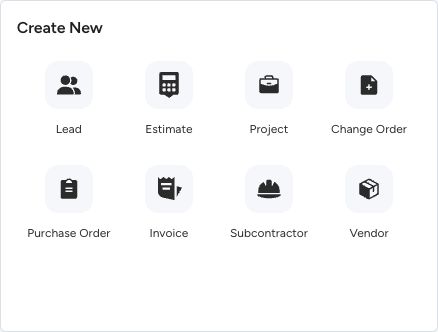
The Dashboard’s Create New panel. Choose the type of record you need.
- Estimates propose the work. Invoices bill for it.
- Change orders record adjustments to agreed scope.
- Purchase orders record what you buy from suppliers.
Step by step
Use the sidebar
Open Contacts, Estimates, Invoices, or Projects for your everyday work. The Manage and Financials groups contain company tools, directories, reports, and Online Payments.
Create from the Dashboard
Use the Create New panel to start a lead, estimate, project, change order, purchase order, invoice, subcontractor, or vendor. The available choices follow your access.
Find a record
Use Search in the sidebar, or press Command K on Mac. Document lists also have search and filtering controls for narrowing a longer list.
Open the company menu
Select your company name at the bottom of the sidebar. Open Account & Billing, Docs, or another workspace listed in the menu.
What happens next
Navigation changes the screen you are viewing. Switching workspace changes the company whose records and permissions you are using.
Good to know
If a feature is missing or read-only, check your company, role, assigned projects, and subscription access before creating a duplicate record.
Sign in to use this feature. Available actions depend on your workspace access.