
Contacts & leads · 2 min read
Add and manage contacts and leads
Capture an inquiry and keep client details available when creating documents.
Before you start
Have the contact’s name and, when sending documents by email, a valid email address.
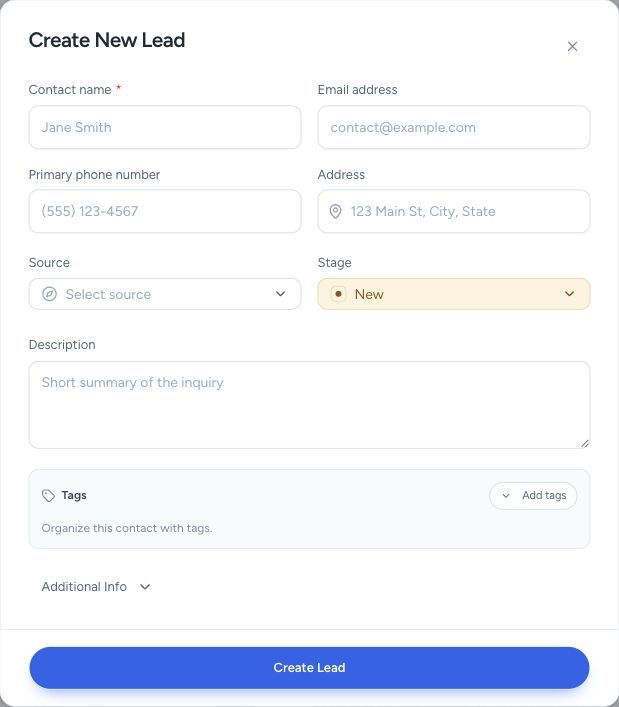
Create New Lead opens a blank contact form.
- Start with the contact name and communication details.
- Choose a stage and record how the lead found you.
- Use tags to organize contacts for later searches.
Step by step
Open Contacts
Use Contacts in the sidebar, or Create Lead on the Dashboard, to start a new inquiry.
Record the details
Enter the contact and job information offered in the form, including the email, phone, address, and lead source when known. Save the record.
Keep the opportunity current
Open the contact or lead detail to update its information and status as the conversation progresses. Check linked client information before adding another record for the same person.
Use the contact on your work
Choose the existing lead or client when creating a project or document. Review the selected recipient and email before sending.
What happens next
The saved contact becomes available for the relevant project and document pickers. Linked lead and client records help keep the same customer’s work connected.
Good to know
Contacts is the sidebar label even though its address contains /leads. Do not create another contact just because a lead already has a linked client.
Sign in to use this feature. Available actions depend on your workspace access.