
Contacts & leads · 2 min read
Import and export records with CSV
Move supported records in and out of BidKit using the list’s Import / Export menu.
Before you start
Use a CSV file and review the format provided by the import dialog for that record type.
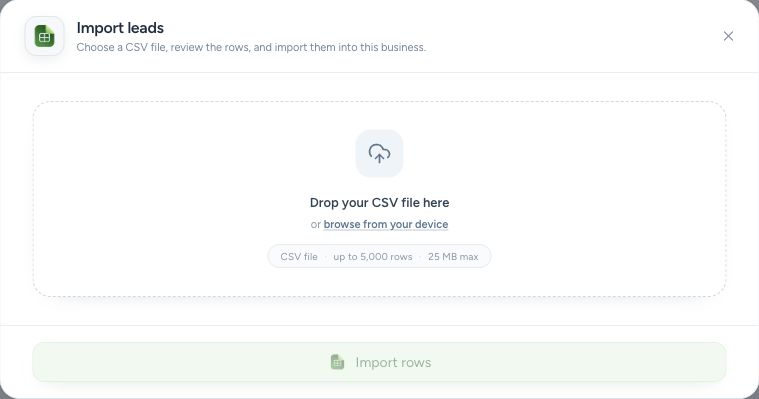
Import CSV opens a file-selection dialog. Review rows before completing an import.
- Drop a CSV here or browse for the file.
- Import rows is enabled after a valid file is reviewed.
Step by step
Choose the record list
Open the list you want to update. Select Import / Export, then Import CSV.
Prepare the file
Follow the dialog’s file and column instructions. Keep one record per row and supply the required values. Import into the matching type of list.
Review before importing
Choose the CSV and review the validation results. Correct the flagged rows or values before completing the import, then check the resulting records.
Export when needed
Select Export CSV from the same menu. Open the downloaded file in your spreadsheet app and check the column headings before reusing it.
What happens next
An import creates the supported records after validation. An export downloads a CSV; it does not remove records from BidKit.
Good to know
Report exports have their own behavior: they include all filtered rows and use the visible column order. Keep a copy of your original CSV when correcting an import.
Sign in to use this feature. Available actions depend on your workspace access.