
AI & document tools · 2 min read
Draft document items with Clyde AI
Describe the work to get a starting point you can review and refine.
Before you start
Start an editable document. Know the project’s scope and any real prices or measurements you want the draft to reflect.
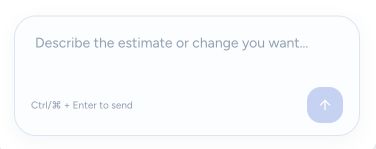
The prompt at the bottom of the Clyde AI panel.
- Describe the actual scope, quantities, and assumptions.
- Submit the prompt, then review the resulting items in the document.
Step by step
Open Clyde AI
Select Clyde AI in the editor’s assistant rail.
Describe the work
Write a specific request with the work type, quantities, location context, materials, and exclusions you know. Explain the changes you want when refining a draft.
Review the result
Check the generated descriptions, units, quantities, prices, and tax assumptions. Compare them against your actual scope and supplier information.
Finish the document
Review the resulting items in the editor, make corrections, and check the total and payment schedule before previewing and sending.
What happens next
AI helps prepare document content. You remain responsible for reviewing the scope and pricing before a client or supplier receives it.
Good to know
Treat suggested pricing as a starting point, not a supplier quote. Generating content is separate from sending the document.
Sign in to use this feature. Available actions depend on your workspace access.