
Financial reports · 2 min read
Find outstanding and overdue invoices
Use the Open Invoices report to focus your payment follow-up.
Before you start
Make sure invoice schedules, due dates, payments, and credits are up to date.
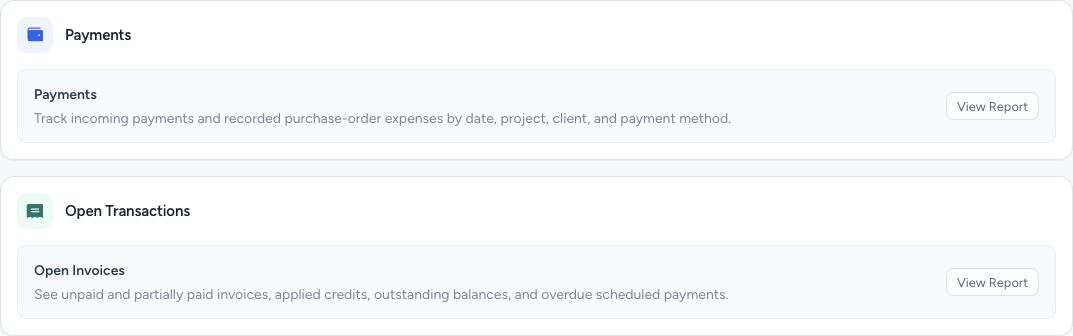
Reports separates received and outgoing payments from open invoice balances.
- Payments shows recorded incoming and outgoing money.
- Open Invoices shows outstanding and overdue balances.
Step by step
Open Open Invoices
Choose Open Invoices from Reports. Sent and partially paid invoices are selected initially; use status filters to include drafts when needed.
Filter the list
Choose the client, project, date, or other available filters. The date filter uses invoice issue dates. Select Generate Report to apply your choices and refresh the results.
Read the balance
Amount is the invoice total. Paid is paid cash principal. Applied credits are separate and reduce the remaining outstanding amount.
Prioritize overdue work
Review overdue amounts and open the invoice before following up. Overdue is based on unpaid scheduled dates before today, or the invoice due date when there is no schedule.
What happens next
The report helps identify current unpaid balances. Overdue is capped by outstanding balance, so it does not exceed what remains due.
Good to know
Balances are current, not historical snapshots at the selected date. A draft included by a filter is not necessarily an invoice you have sent to a client.
Sign in to use this feature. Available actions depend on your workspace access.