
Change orders · 2 min read
Create and send a change order
Document a change to the agreed scope and show its effect on the price.
Before you start
For a new project change, choose a project and recipient. To revise existing scope, open the eligible estimate and choose Actions → Create change order.
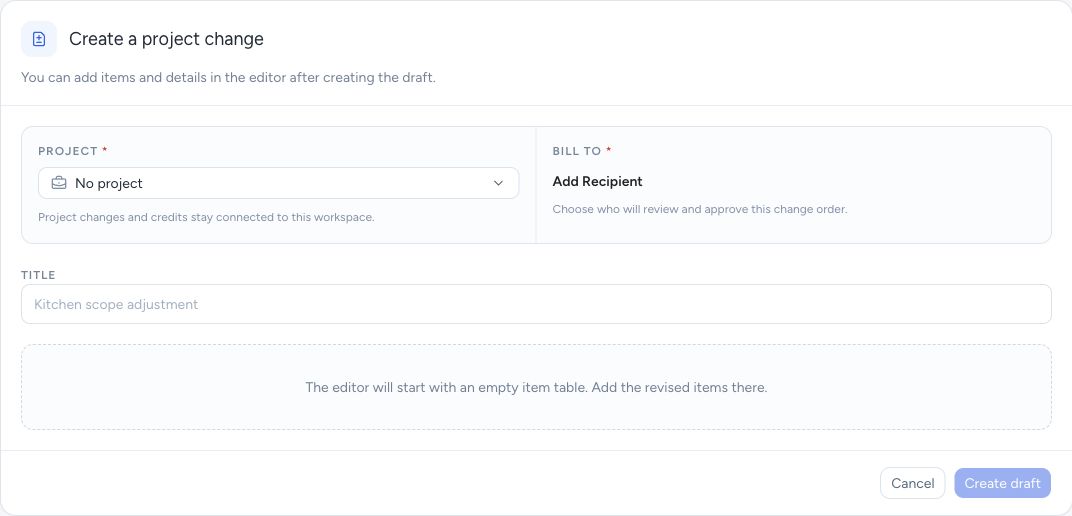
A new project change starts here. Source-estimate changes use the estimate’s Actions menu.
- Select the project to keep the change connected to the job.
- Choose the recipient who will review the change.
- Create a draft, then add revised items in the editor.
Step by step
Choose the starting point
From the Dashboard, choose Create Change Order, select the required project and Bill To recipient, enter a title, and choose Create draft. To start from existing scope, use Actions → Create change order on the source estimate and select the items to revise.
Describe the change
Give the change a clear title. Review planned values and enter the revised scope, quantities, and prices. Add new work or show reductions as appropriate.
Check the difference
Review planned and updated amounts, tax, and total change. The total change is the adjustment, not the full original contract value.
Preview and send for a decision
Review the memo, terms, and signature details. Preview the comparison, then Send it to the recipient for review.
What happens next
The change order records the proposed difference separately from the original scope. Sending is followed by approval or decline; billing depends on the approved change amount.
Good to know
For example, increasing a $1,000 item to $1,250 produces a $250 change before any tax difference. Explain the reason in plain language.
Sign in to use this feature. Available actions depend on your workspace access.