
Purchase orders · 2 min read
Create and send a purchase order
Order materials or services from a vendor or subcontractor.
Before you start
Purchase orders require an eligible plan and workspace access. Add the vendor or subcontractor to your directory first.
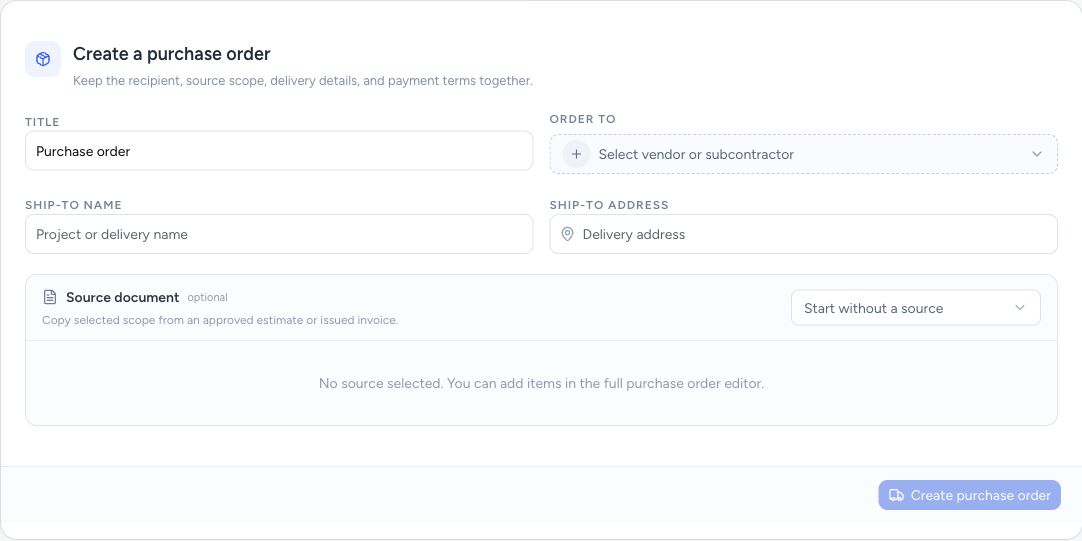
Start a purchase order with a supplier, delivery details, and optional source scope.
- Order to: select a vendor or subcontractor.
- Enter where the order should be delivered.
- Copy selected items from an eligible source document.
Step by step
Choose who you are ordering from
Start a purchase order and select the recipient under Order to. Enter a useful title and the ship-to name and address.
Select source scope if needed
Choose an approved estimate or issued invoice from Source document and select the items to copy. Some project-restricted roles must use a source from an assigned project.
Review the full order
Create the purchase order, then check item quantities, costs, delivery information, payment terms, and any notes in the editor. Add items directly when starting without a source.
Preview and send
Preview the recipient’s version and review the delivery email before sending. Track the order’s approval separately from its delivery and payments.
What happens next
The purchase order records what you intend to buy from the supplier. It does not charge your client or transfer funds to the supplier.
Good to know
Copying source items starts the order; check supplier pricing rather than assuming the client’s selling price is your purchase cost.
Sign in to use this feature. Available actions depend on your workspace access.